
AI Agentic Workspace Folder Structure
If you’ve been using Claude, Gemini, or ChatGPT daily and keep running into the same wall - lost context between sessions, scattered information, no consistent process - then an AI Agentic Workspace is the next thing worth exploring. This guide gives you a concrete folder structure to start from.
Spend enough time with Claude Projects or Gemini Gems and you’ll hit their ceiling: rules need repeating every session, context evaporates, and when tasks get complex the AI simply doesn’t have enough grounding to act correctly. It feels like working with someone brilliant who forgets everything overnight - and you’re the one who has to keep catching them up.
An AI Agentic Workspace fixes this at the structural level. Not by writing better prompts, but by organizing your workspace so the AI always has the context it needs, knows the rules, and can reuse established workflows without being reminded from scratch each time.
What is an AI Agentic Workspace?
An AI Agentic Workspace is a working environment designed so that an AI Agent (like Claude Code) can operate autonomously and consistently across multiple sessions.
Unlike a standard chat setup, an Agentic Workspace has:
- Persistent memory - the AI carries context, decisions, and progress forward from previous sessions
- Standing rules - CLAUDE.md and settings.json ensure consistent behavior without reminders
- Automation - hooks fire automatically on events (session start, after tool use, before context compaction)
- Skill library - workflows packaged as Skills, triggered with a short command instead of a long prompt
In short: instead of teaching the AI every day, the workspace helps it remember and act correctly on its own.
Why folder structure matters
With Claude Code, the AI reads directly from your file system. That means: folder structure = the context your AI sees.
Messy folder:
- AI can’t tell which files matter and which are noise
- No clear rules means inconsistent output
- Every session starts from zero
Organized folder:
- AI loads exactly the right context
- Hooks and Settings enforce consistent behavior
- Skills let you reuse workflows without rewriting prompts
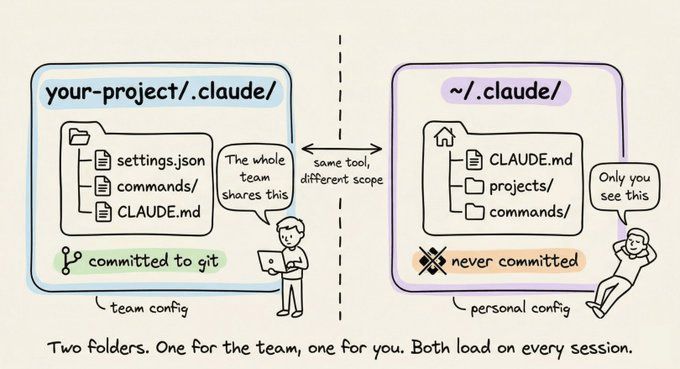 Inside the .claude/ folder - each subfolder serves a distinct function
The complete folder structure
Here’s a practical workspace template combining project-level organization with Claude Code configuration:
your-project/
├── CLAUDE.md                      ← Project rules (< 200 lines), AI reads this first
├── CLAUDE.local.md                ← Personal overrides, gitignored
├── .gitignore
├── .mcp.json                      ← MCP servers, MUST live at root
│
├── .claude/                       ← The AI's brain - read before anything else
│   ├── hooks/                     ← Auto-runs on events
│   │   ├── PostToolUse.sh         ← Runs after every tool call
│   │   ├── SessionStart.sh        ← Loads project context on session open
│   │   └── PreCompact.sh          ← Saves state before context compaction
│   ├── commands/                  ← Custom slash commands /
│   │   └── ship.md                ← Build + lint + deploy in one command
│   ├── skills/                    ← Skill library, invoked contextually
│   │   ├── knowledge/
│   │   ├── commit/
│   │   └── ...
│   ├── agents/                    ← Subagents with their own context windows
│   │   ├── code-reviewer.md
│   │   ├── researcher.md
│   │   └── log-analyzer.md
│   ├── rules/                     ← Path-scoped rules
│   │   └── api.md                 ← Applies only to src/api/**
│   ├── settings.json              ← Permissions, model, hook registration
│   └── settings.local.json        ← Personal settings, gitignored
│
├── _client-context/               ← Project/client context
│   ├── audience.md                ← Who the output is for
│   ├── brand-voice.md             ← Tone and voice guidelines
│   └── product-context.md         ← Product information
│
├── _sop/                          ← Standard Operating Procedures
│   ├── content-creation.md
│   └── code-review.md
│
├── _memory-logs/                  ← Session logs
│   ├── 2605-log.md
│   └── README.md
│
└── Output/                        ← Final deliverables
    ├── 260501-project-output.md
    └── README.md
Breaking down each layer
Layer 1: Root files - the foundation
CLAUDE.md is the first file the AI reads on startup. Write your project rules here: what the AI should and shouldn’t do, code style, default language, and key constraints. Keep it under 200 lines - anything longer and the AI will start skimming the end.
CLAUDE.local.md is a personal override, gitignored so it never gets committed. Use it for machine-specific or user-specific settings.
.mcp.json declares MCP servers - connections that let the AI access external tools (Google Analytics, Figma, Notion…). This file must live at the project root.
Layer 2: .claude/ - the AI’s brain
This is the most important folder. Claude Code reads .claude/ before anything else.
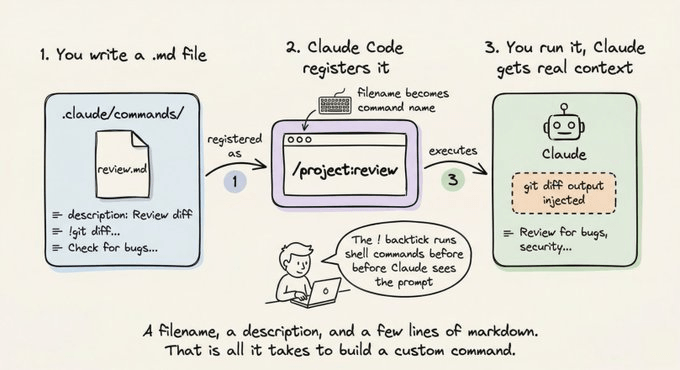 Hooks fire automatically on events - no manual triggering required
hooks/ contains shell scripts that run automatically:
PostToolUse.sh- runs every time the AI uses a tool (e.g. auto-commit after editing a file)SessionStart.sh- loads project context when a new session opensPreCompact.sh- saves state before Claude compresses the conversation
commands/ holds custom slash commands. Create a ship.md describing your release workflow, type /ship, and the AI runs build + lint + deploy without further instruction.
skills/ is your Skill library - each Skill packages a workflow. Instead of writing a long prompt every time, invoke /knowledge or /commit and the AI knows exactly what to do.
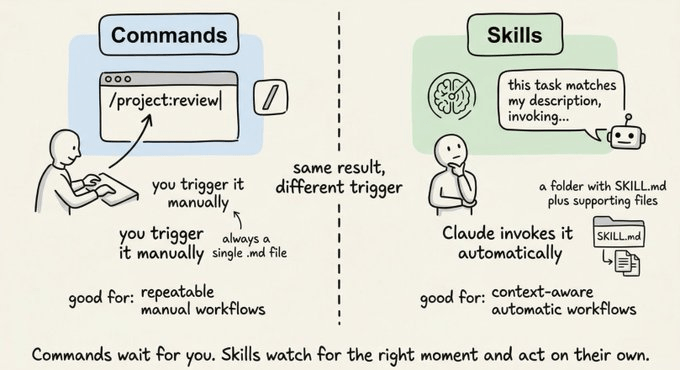 Skills let you reuse workflows - invoke them with a slash command instead of rewriting prompts
agents/ defines subagents - secondary AIs that run in parallel with their own separate context windows. Each .md file is a specialized “AI persona”: code-reviewer.md, researcher.md, log-analyzer.md.
settings.json controls what the AI is allowed to do: which tools it can use, which model to load, which hooks to register. Commit this to git so the whole team uses the same config.
Layer 3: Context layer - project background
_client-context/ holds project or client information: who the audience is, what the brand voice sounds like, key product details. The AI reads these files to calibrate its output for the specific project.
_sop/ contains Standard Operating Procedures - detailed instructions for what the AI should do in specific situations. For example: content-creation.md defines the exact workflow from research to publish, code-review.md lists the review checklist. This is your project’s process playbook, kept separate from .claude/ so it’s easy to edit and share with your team.
Layer 4: Memory and Output
_memory-logs/ stores session logs by month. Standard format: date-time, what was done, important decisions, open issues, context to carry forward. The AI reads this folder at the start of each session to catch up on progress.
Output/ holds final project deliverables, named by date: 260501-project-output.md. Keeping it separate from the working directory makes handoff clean.
3 principles for an effective workspace
1. Clear separation of concerns - .claude/ for AI config, _client-context/ for project context, _memory-logs/ for history, Output/ for results. Each type of information has its own home - no mixing.
2. Use _ prefix for meta folders (context, memory, core). This convention pushes them to the top of the file explorer and signals to the AI that these are support files, not product code.
3. Hooks over prompts - for repetitive tasks (auto-commit, context loading, state saving), write a hook rather than prompting the AI to do it. Hooks run automatically and consistently; prompts depend on whether you remembered to ask.
How to set one up
Here’s how to go from zero to a working workspace - no need to build everything at once.
Step 1 - Create the root folder
Create a new folder and name it after your project, e.g. 260508-website-content or client-abc. Using date-prefix naming (YYMMDD-project-name) makes it easy to sort when you have many projects running.
Step 2 - Create the basic subfolders
No need to build everything upfront. These 4 are enough to get started:
your-project/
├── CLAUDE.md
├── _client-context/
├── _memory-logs/
└── Output/
Add .claude/ when you’re ready to set up hooks and skills. Add _sop/ when you have a workflow worth standardizing.
Step 3 - Open with your tool of choice
- Claude Code (CLI) - run
claudein the terminal from the root folder. This unlocks the full stack: hooks, skills, agents, MCP. - Obsidian + Claudian - works well if you’re already using Obsidian as your PKM. The Claudian plugin lets you call Claude directly inside your vault, turning the workspace folder into part of your knowledge base.
- IDE (Cursor, VS Code) - open the folder like a normal project. Cursor’s Claude integration reads
CLAUDE.mdand context files in the same workspace.
Step 4 - Write your CLAUDE.md
A minimal working CLAUDE.md:
# [Project name]

## What this project is
[1-2 sentences]

## Rules
- Default language: [English / Vietnamese]
- Tone: [professional / friendly / technical]
- Never: [things the AI must not do]

## Context
- Target audience: [who reads the output]
- Read _client-context/ before starting any task
Keep it under 200 lines. If you need more rules, split them into separate files inside _client-context/ and reference them from here.
Skip the setup - use the ready-made template
The full workspace template is on GitHub with the complete structure, example CLAUDE.md, basic hooks, and setup notes for each folder. Clone and go.
enginate-ai-workspace-template on GitHub →Frequently Asked Questions
Which folders should I create first?
Start with these 4: CLAUDE.md at root (write the basic project rules), _client-context/ (audience, brand voice, product context), _memory-logs/ (log after each session), and Output/ (store final deliverables). Add .claude/ gradually - begin with settings.json and a simple SessionStart.sh hook.
Should I commit .claude/ to git?
It depends on the file. settings.json, hooks/, commands/, and skills/ should be committed so the whole team shares the same setup. settings.local.json and CLAUDE.local.md should be gitignored since they contain personal settings. Session transcripts in .claude/projects/ should also be gitignored - they can contain sensitive code.
How is this different from Claude Projects?
Claude Projects (on claude.ai) is configured through a web interface - you paste instructions and upload files. An Agentic Workspace with Claude Code is a different level entirely: the AI reads directly from your file system, hooks run automatically, skills are invoked as commands, and the AI can execute code. It’s a significantly higher degree of autonomy.
Summary
A well-organized AI Agentic Workspace doesn’t just make the AI more effective - it changes how you think about working with AI altogether. Instead of “chatting with AI,” you’re “operating a system” - with rules, memory, and automation. Start with CLAUDE.md and a simple SessionStart.sh hook, then expand as your real workflow demands it.
Related
- Claude Agent and Skills Explained: A Beginner's Guide to AI That Actually Works
- How to Build AI Skills: A 7-Step Process for Creating Skills That Actually Work
- Context in AI: The Key to Turning Your AI from a Stranger into a Real Collaborator
- Optimize AI Chat History: Auto-Save Session Logs, Preserve Context, and Cut Token Costs
- MCP (Model Context Protocol): The Open Standard Connecting AI to the Real World
- What is an SOP? Why You Need One - Especially When Working with AI Agents