 NateCue
Claudian: Run Claude AI Agent Directly Inside Obsidian
Claudian turns your Obsidian vault into Claude Code’s working directory. The AI can read and write files, search your notes, run bash commands, and execute multi-step workflows - all from inside your note-taking app.
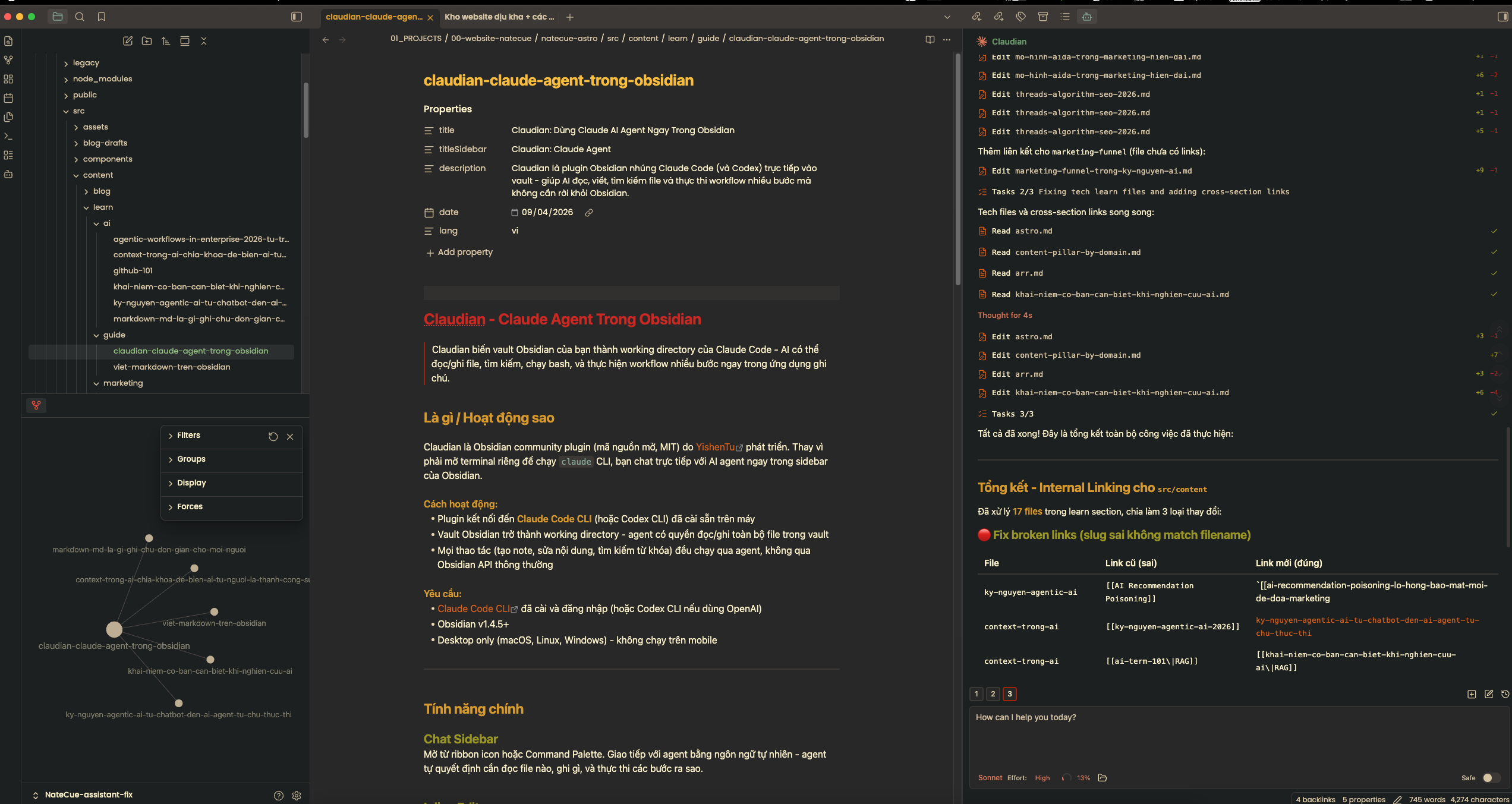
What It Is and How It Works
Claudian is an open-source Obsidian community plugin (MIT license) built by YishenTu. Instead of switching to a terminal to run the claude CLI separately, you interact with the AI agent directly in Obsidian’s sidebar.
Under the hood:
- The plugin connects to an already-installed Claude Code CLI (or Codex CLI if you use OpenAI)
- Your Obsidian vault becomes the working directory - the agent has full read/write access to all files in the vault
- Every operation (creating notes, editing content, searching by keyword) runs through the agent, not through the standard Obsidian API
Requirements:
- Claude Code CLI installed and authenticated (or Codex CLI for OpenAI)
- Obsidian v1.4.5 or later
- Desktop only (macOS, Linux, Windows) - not supported on mobile
Core Features
Chat Sidebar
Open from the ribbon icon or Command Palette. Talk to the agent in plain language - it decides which files to read, what to write, and how to sequence its steps.
Inline Edit
Select any text in a note and press the hotkey. The agent edits that specific passage in place, with a word-level diff preview so you can review every change before accepting.
Slash Commands and Skills (/ or $)
Create reusable prompt templates scoped to your user account or a specific vault. Examples: /summarize, /translate, /format-note. Type the command and it runs immediately.
@mention
Type @ to attach context to the agent’s prompt:
- Files from your vault
- Subagents
- MCP servers
- Files outside the vault
Plan Mode (Shift+Tab)
Enable a “plan first” mode where the agent surveys the task and proposes a detailed plan for your review before doing anything. Highly recommended before any operation that touches many files.
MCP Servers
Connect external tools via Model Context Protocol (stdio, SSE, or HTTP). Examples: Notion, Jira, a database - the agent can interact with them directly from inside Obsidian.
Multi-Tab and Conversation History
Run multiple chat sessions in parallel, fork a conversation to explore a different direction, resume old sessions, or compact long conversations for better context efficiency.
Installation (Easiest Method - GitHub Release)
- Go to Releases and download three files:
main.js,manifest.json,styles.css - Create a folder in your vault:
vault/.obsidian/plugins/claudian/ - Copy the three downloaded files into that folder
- In Obsidian: Settings - Community plugins - Enable “Claudian”
Alternative - Using BRAT (auto-updates):
- Install BRAT from the Community Plugins browser
- Open BRAT Settings - Add Beta plugin
- Enter:
https://github.com/YishenTu/claudian - BRAT installs and notifies you when new versions are available
Troubleshooting Common Errors
Error: Claude CLI not found or spawn claude ENOENT
The plugin can’t locate the CLI. This often happens when you’re using a Node version manager (nvm, fnm, volta) - the CLI is installed in a path the plugin can’t find automatically.
Find the CLI path:
which claude   # macOS/Linux
where.exe claude   # Windows
Then paste that path into: Settings - Advanced - Claude CLI path
Why This Changes How You Work in Obsidian
No context switching: Your entire AI workflow - research, drafting, editing, organizing notes - runs inside the vault. No alt-tabbing to a terminal or separate browser tab.
A real agent, not a chatbot: Claudian uses the Claude Code SDK, meaning the agent autonomously reads files, writes content, searches across notes, and chains multiple steps together without you guiding each one manually.
Inline edit with diff preview: You edit a specific passage, review the proposed changes word by word, then accept or reject. Much safer than asking an AI to “rewrite this section” in a chat and pasting the output blindly.
Plan Mode means real control: For large tasks - rewriting 20 notes, restructuring an entire vault section - enabling Plan Mode lets you review and approve the plan before a single file is touched. No surprises.
MCP makes the vault a hub: Connect Notion, Jira, Supabase, or whatever tools you use. Your Obsidian vault becomes the central coordination point for everything.
Privacy by default: No telemetry. Data only goes to the API provider you configure (Anthropic, OpenRouter, etc.).
FAQ
Does Claudian require an active internet connection?
Yes - it connects to the Claude API (or whichever AI provider you configure) for each request. Your vault files stay local; only the content you send in prompts goes to the API.
Can Claudian accidentally delete or corrupt my notes?
The agent has full file access, so in theory it could. In practice: use Plan Mode for any large-scale operations, and keep your vault backed up (Git or cloud sync). For single-note edits, the inline diff preview lets you reject changes before they’re applied.
How is Claudian different from just using ChatGPT in a browser tab?
Claudian’s agent can read your actual vault files directly - it has context about what notes you have, what’s in them, and how they link together. A browser chatbot requires you to copy-paste content manually and has no awareness of your broader knowledge base. Claudian can also take actions: creating notes, adding wikilinks, updating frontmatter - a chatbot can only produce text you then have to apply yourself.
Can I use Claudian with local AI models?
Not natively, but you can route through OpenRouter or a compatible proxy that exposes a compatible API. The plugin’s CLI path setting gives you flexibility in which CLI tool it connects to.