 NateCue
Map of Content (MOC): How to Organize Knowledge in Obsidian
A MOC - short for Map of Content - is a note that acts as a “map” linking all related notes on a topic into a single access point. It’s the core knowledge organization technique in PKM (Personal Knowledge Management), and anyone using Obsidian seriously needs to understand it.
If you’re using Obsidian and only organizing things into folders, you’re missing what makes the app genuinely powerful: the link network. A MOC is how you turn a scattered collection of notes into a knowledge system you can actually navigate, expand on, and - with AI support - maintain almost automatically.
What a MOC Is
A Map of Content is a special kind of note. Rather than containing detailed information itself, it contains a list of wikilinks pointing to other notes on the same topic. Think of it as a living table of contents - unlike a static book index, a MOC in Obsidian is continuously updated and always reflects the actual state of your vault.
The concept was popularized by Nick Milo through the LYT (Linking Your Thinking) framework - one of the most widely adopted PKM systems in the Obsidian community. The core idea: instead of sorting notes into rigid folders, you create flexible “hubs” that can overlap, share notes across topics, and grow in ways that match nonlinear thinking.
A typical MOC looks like this:
# MOC - Marketing

## Strategy
- [[content-pillar-by-domain]]
- [[marketing-funnel-in-the-ai-era]]
- [[aida-model-modern-marketing]]

## SEO and Visibility
- [[geo-generative-engine-optimization-2026]]
- [[zero-visit-visibility-strategy]]
- [[threads-algorithm-seo-2026]]

## Tools and Platforms
- [[cms-list]]
- [[arr]]
Simple. But the power isn’t in the list itself.
How MOCs Work in Obsidian
Obsidian’s entire system is built around wikilinks - the [[note-name]] syntax. Every wikilink you create is automatically tracked bidirectionally:
Forward links: From note A, you see every note A points to - this is what you write in the MOC.
Backlinks: From any note B, you can open the Backlinks panel and see every note that links to B - including notes you might have forgotten existed.
Here’s the key insight: when you add [[MOC-Marketing]] to any new note, that note automatically appears in MOC-Marketing’s backlinks - without you having to open the MOC and update it manually.
Graph View - The Visual Map
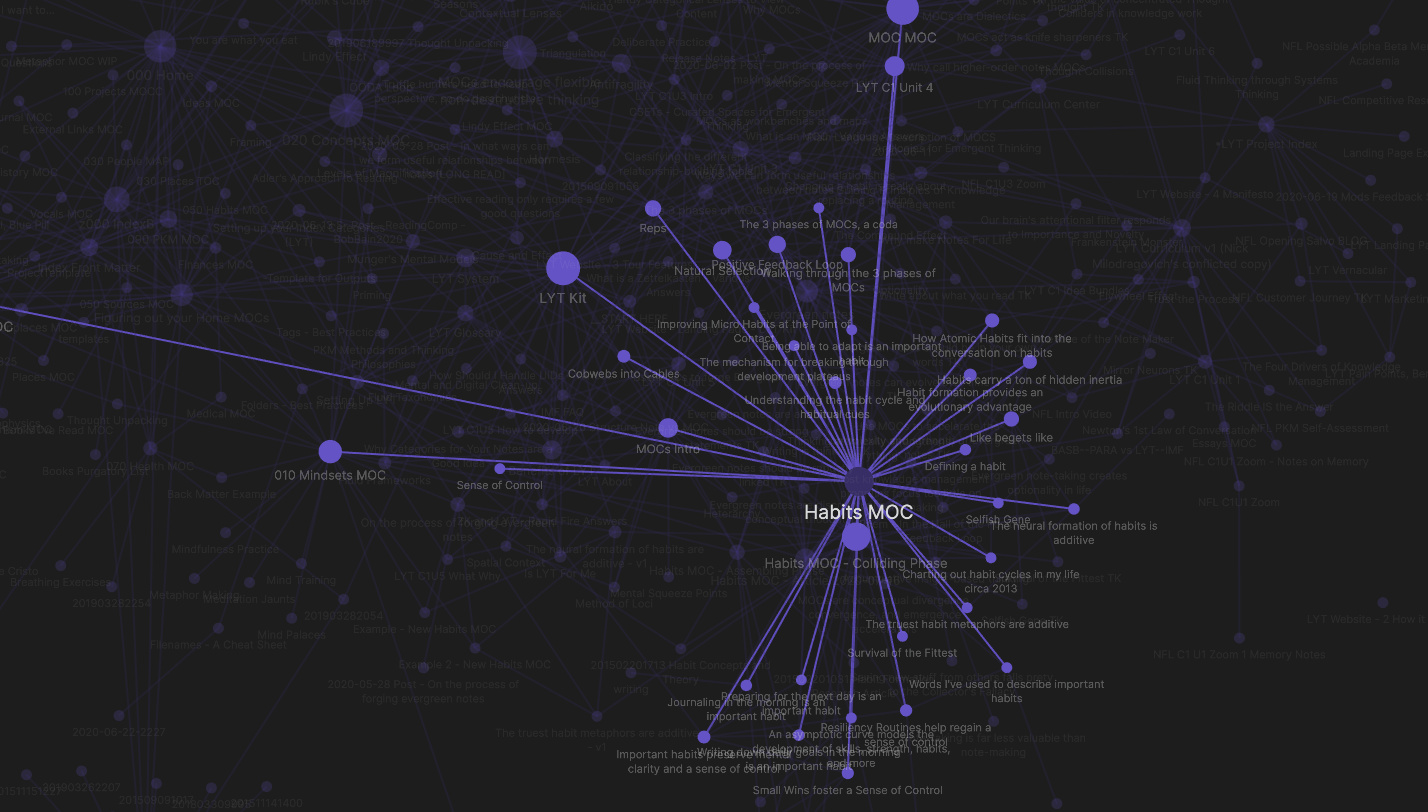
Open Graph View (Ctrl/Cmd + G) and Obsidian renders your entire vault as a network graph. MOC notes appear as large central nodes because they have the most connections. You can immediately see which areas of your knowledge are densely linked and which are isolated islands that need more work.
How to Create a MOC in Obsidian
- Create a new note titled
MOC - [Topic]or[Topic] Hub - Add a frontmatter tag:
tags: [moc]for easy filtering later - Use H2 headings to group links into subcategories
- Add
[[note-name]]links to existing notes - Open the Local Graph for that note to immediately see its connection map
MOC vs. Folder - Why MOC Wins
This is the most common question from new Obsidian users. Folders feel familiar, but they have hard constraints that MOCs don’t:
- A note can only live in one folder, but it can be linked from multiple MOCs simultaneously. A note about “AI Chatbots in Healthcare” can appear in MOC-AI, MOC-Pharmacy, and MOC-Marketing - no duplication needed.
- Folders carry no context beyond their name. A MOC can include annotations, commentary, and notes about why a link matters - right next to the link itself.
- Folders are rigid when your thinking evolves. Renaming a folder structure is painful. Restructuring a MOC is just adding and removing wikilinks.
- Folders don’t participate in Graph View. MOCs are real nodes in the knowledge network.
Using AI to Maintain Your MOC
This is where things get genuinely interesting - and why MOCs have become more relevant as AI tools have matured.
When you use an AI agent inside Obsidian (like Claudian, which connects Claude Code directly to your vault), knowledge management can become largely automatic:
Auto-Creating Notes and Linking Them to a MOC
Instead of “I should write about GEO eventually,” you tell the AI:
“Create a note about GEO (Generative Engine Optimization) and link it into the Marketing MOC.”
The AI will:
- Create the note with complete content
- Add
[[MOC-Marketing]]to the bottom of the new note - establishing the backlink automatically - Open MOC-Marketing and add
[[geo-note]]to the right category
Result: bidirectional linking set up without any manual file manipulation.
Scanning the Vault for Orphan Notes
AI can scan your entire vault, find notes that aren’t linked from any MOC (orphan notes), categorize them, and suggest which MOC they belong in - or add them automatically if you grant permission.
Auto-Generating a MOC from a Cluster of Notes
If you have 10 scattered notes on a topic but no MOC yet, ask: “Create a MOC that organizes all my AI-related notes.” The AI reads the vault, groups notes by theme, and produces a structured MOC in seconds.
Why Bidirectional Linking Matters
Bidirectional linking means that when note A links to note B, Obsidian automatically records that B is aware of A - even though B doesn’t explicitly mention A. This is the foundation of Graph View and how human memory actually works: not as a hierarchy, but as a web of associations.
When AI maintains this bidirectional linking consistently, you get something humans are genuinely bad at sustaining manually: a knowledge base where every new note is connected to the existing web the moment it’s created.
Types of MOCs
MOCs aren’t one-size-fits-all. You can create different types for different purposes:
- Topic MOC: Aggregates all notes on a subject - MOC-Marketing, MOC-AI, MOC-Pharmacy
- Project MOC: A hub for a specific project - linking tasks, research, meeting notes, decisions
- Index MOC (Home MOC): A MOC of MOCs - the entry point to your entire vault, where everything is reachable
- Person MOC: A central note about someone important - linking related conversations, ideas, and resources connected to that person
FAQ
Is a MOC the same as a folder?
No. A MOC is a regular .md file like any other note - but its content is a list of wikilinks instead of knowledge. Folders in Obsidian still organize files physically on disk. A MOC creates a logical structure that can be flexible, overlapping, and multi-dimensional in ways a folder hierarchy never can be.
Does Obsidian auto-create backlinks, or do I have to add them manually?
Obsidian automatically tracks and displays backlinks - just open the Backlinks panel in the right sidebar. But for a note to appear in a MOC’s backlinks, you (or the AI) must actually write [[moc-name]] into that note. Obsidian shows existing links bidirectionally; it doesn’t create links on its own.
My vault already has hundreds of notes. Where do I start with MOCs?
Start with a Home MOC - create a note called “Home” or “Index” and list the main topics you write about most. Each of those becomes its own MOC. You don’t need to do this all at once. As you create each new note, just add it to the relevant MOC - the vault builds itself over time.
What are the risks of using AI to manage MOCs?
The main risk is the AI adding incorrect links or creating notes that don’t match your intent. To mitigate this: enable Plan Mode in Claudian before any bulk operation - the agent will show you its proposed plan before touching anything. For individual notes, the risk is low and easy to fix if something’s wrong.
Can I use Dataview to make MOCs auto-updating?
Yes. Instead of manually maintaining a list of wikilinks, you can write a Dataview query that automatically pulls all notes with a certain tag or in a certain folder. The MOC updates itself whenever a matching note is added. Combining MOC structure with Dataview queries gives you a fully automated knowledge index.
Summary
A MOC isn’t a fancy feature - it’s a way of thinking about knowledge organization. With MOCs, Obsidian stops being a passive archive and becomes a living network of ideas. Combined with an AI agent like Claudian, maintaining bidirectional links becomes nearly automatic - you focus on learning and writing, the AI handles the connecting and updating.
Start simple: create one Home MOC and link your five most important existing notes into it. That’s enough to see how the system changes the way you navigate your vault.